
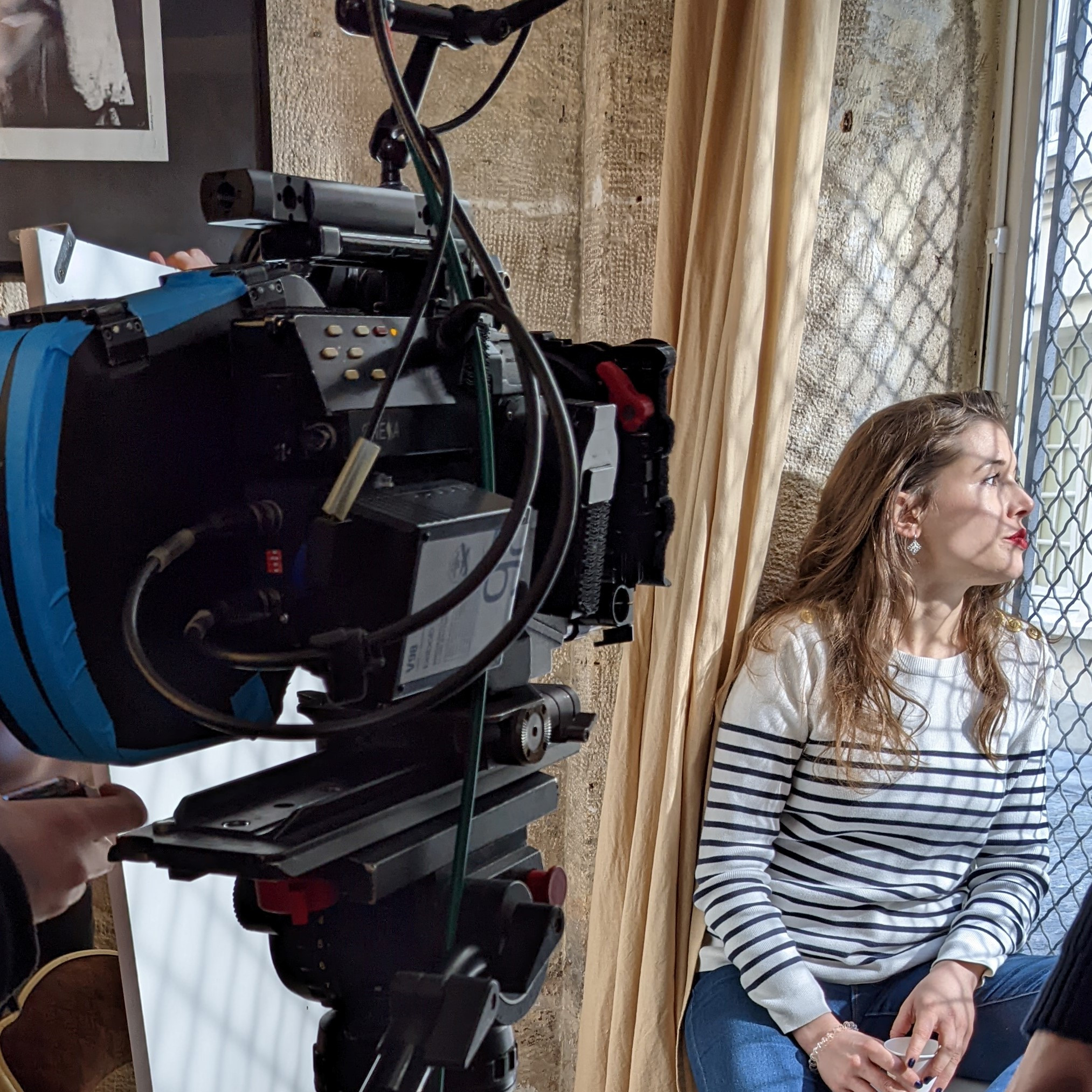


[Problème] Au secours !
Discussion dans 'Avid Liquid' créé par elpjg, 21 Août 2011.
Tags:
Chargement...
- Discussions similaires - secours
-

- Réponses:
- 3
- Nb. vues:
- 418
-

- Réponses:
- 2
- Nb. vues:
- 588
-

- Réponses:
- 0
- Nb. vues:
- 547
-

- Réponses:
- 26
- Nb. vues:
- 2 978
-
-
 Publié parLucas.janiszewski 11 Juin 2026, à 19:35
 -
 Publié parLucas.janiszewski 10 Juin 2026, à 18:59
 -
 Publié parLucas.janiszewski 4 Juin 2026
 -
 Zeiss Horizon x2 : des moteurs de point et d'iris intégrés dans l'optique, pour cette nouvelle sériePublié parLucas.janiszewski 4 Juin 2026
 -
 Publié parLucas.janiszewski 20 Mai 2026
-
-
-
 Publié parGRG 7 Mai 2026
 -
 Publié parmaximetrage 19 Septembre 2025
 -
 Publié parClmR 18 Juillet 2025
 -
 Publié parValentin Hautot 18 Juillet 2025
 -
 Publié parGRG 11 Juillet 2025
-
-
-
 Publié parLucas.janiszewski 11 Février 2026
 -
 Publié parRepaire 31 Mai 2023
 -
 Publié parRepaire 20 Février 2023
 -
 Publié parRepaire 20 Janvier 2023
 -
 Publié parRepaire 20 Décembre 2022
-
-
-
 Publié parRepaire 22 Mai 2026
 -
 Publié parMarina 15 Janvier 2026
 -
 Publié parMarina 29 Octobre 2025
 -
 Publié parmaximetrage 19 Septembre 2025
 -
 Publié parMarina 30 Avril 2025
-
-
-
Enregistrement licence?pierred81 23 Mai 2026
-
Refroidir Osmo 3 avec dissipateur thermiqueBeru 27 Mai 2026
-
Une dernière, pour la route...nestaphe 25 Mai 2026
-
Montage vidéoLE GONIDEC 25 Mai 2026
-
Modifier couleur dans videohuik 1 Juin 2026
Chargement... -
-
Chargement...
-
Chargement...
-
-
45 caméras par match !AQW333 14 Juin 2026, à 11:53
-
l'Insta360 Luna Ultra : sur le terrain de DJIAQW333 13 Juin 2026, à 14:13
-
Cinelux Sixteen : la caméra qui veut réconcilier pellicule et numériqueLucas.janiszewski 11 Juin 2026, à 19:35
-
Kinefinity Vista : une caméra cinéma 6K qui attaque frontalement le marché des hybridesLucas.janiszewski 10 Juin 2026, à 18:59
-
Teaser : Un Silencieuxf.comme.phab 9 Juin 2026, à 15:03
Chargement... -




Dernières occasions
Dernières formations


Les vidéos
-
 Publié parCanon France 7 Juin 2022
 -
 Publié parCanon France 17 Mai 2021
 -
 Publié parCanon France 5 Mars 2021
Vous souhaitez annoncer sur le Repaire ? Contactez-nous